
How Clarity Works: Transparent Employee Time Tracking Software
A transparent, feature-by-feature look at how Clarity's time tracking software works — what gets recorded, when, and who can see it.
Our Approach
Built for Transparency, Not Surveillance
Every tracking feature in Clarity follows the same rule: the person being tracked should never be surprised by their own data. That means visible notifications, a full activity history anyone can review, and permission settings that are explained in plain language — not buried in a settings menu.
01
You're in Control
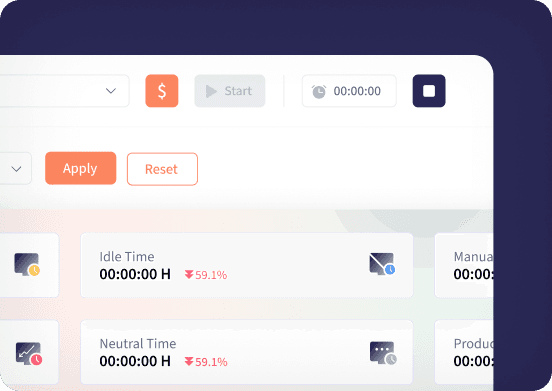
Clarity's timer works like a traditional time clock. You start it when you begin working and stop it the moment you're done — nothing is tracked while the timer is off.
Screenshots, activity rate, and app & URL tracking are only captured when your organization has those specific features turned on, and only while you're actively clocked in.
How Tracking Actually Starts
Install Clarity
Available for Windows. Just download and run the installer — no IT rollout needed.
Review Your Permissions
Before anything is tracked, Clarity shows exactly what will be recorded — screenshots, activity, apps, or none of it — so nothing runs without your knowledge.
Clock In and Go
Start the timer and Clarity handles the rest — categorizing time, building your timesheet, and updating your dashboard as you work.
02
Know What's Being Tracked, Always
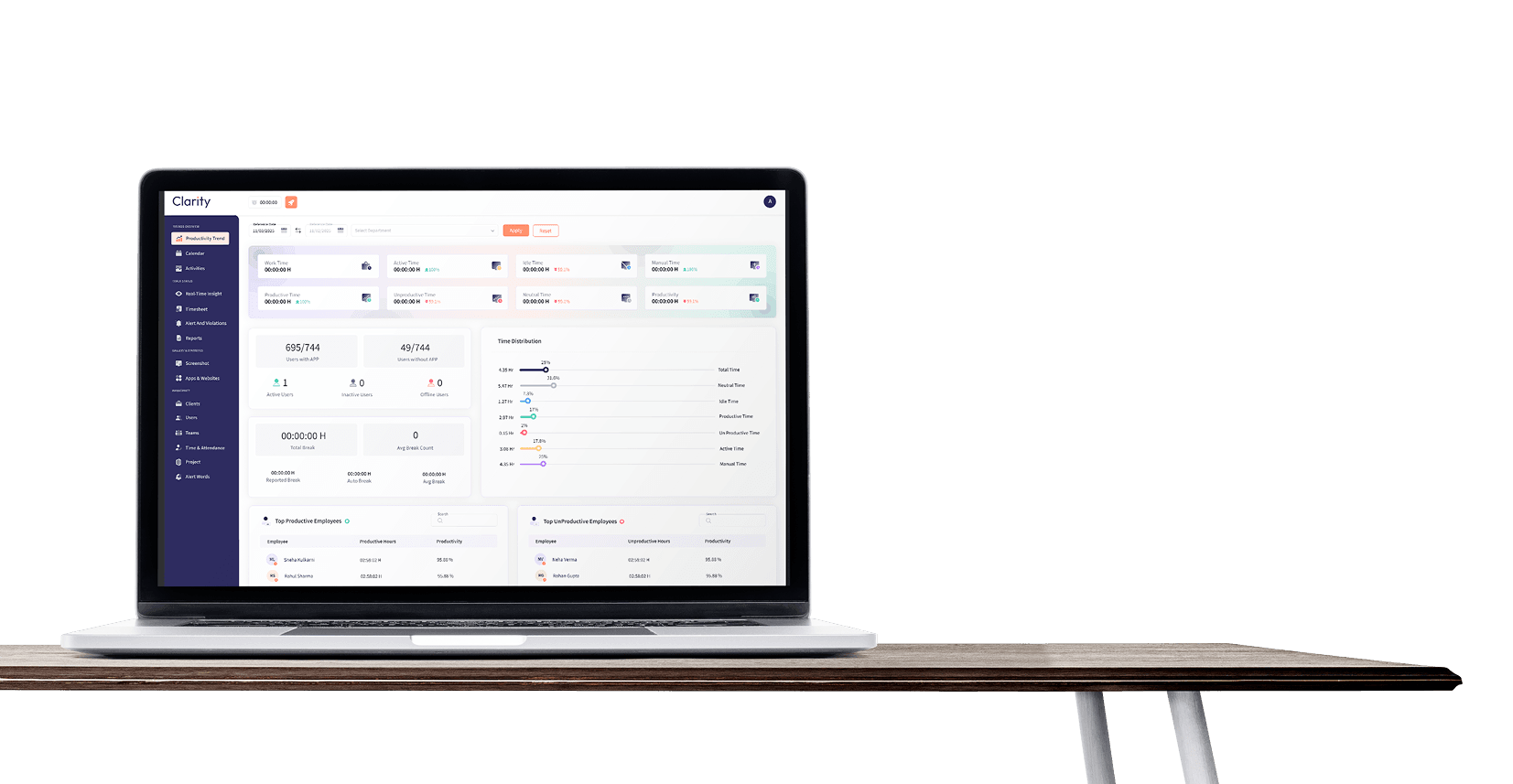
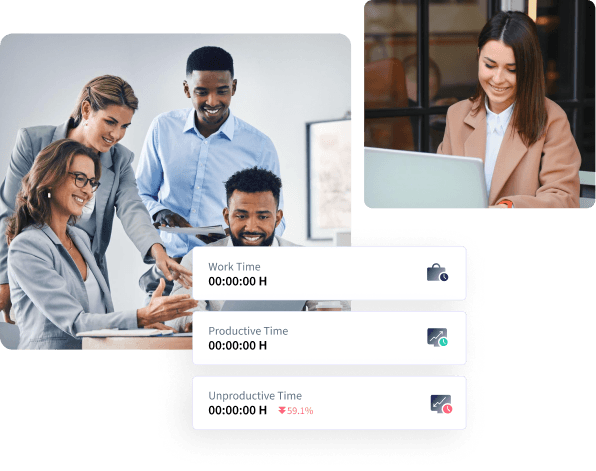
Clarity gives employees access to their own work history. From the Activity view, they can review tracked hours, and recorded activity for each work session whenever they need. Everyone has visibility into their own data, making time tracking clear, consistent, and transparent.
What Clarity Tracks
Clarity's desktop app and browser extension capture different things. Here's the full feature set — your organization can turn any of these off.

- Time Tracking
- Apps / tabs used
- Screenshots
- Activity Tracking
- Real-Time Insight
- Time & Attendance
- Project Time
- Productivity Trend
- Alert Words & Violations
What Clarity Asks Permission For
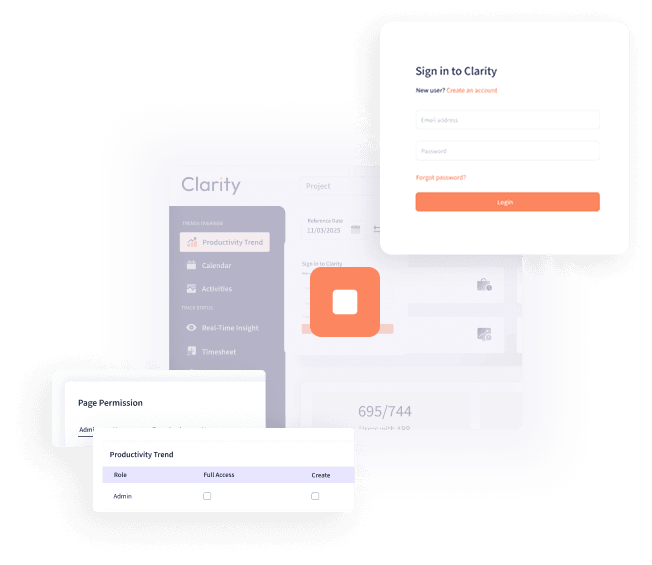
What each role can see and do inside Clarity, broken down by area. Assign roles per person, and scope Project Manager or Team Lead access to only the projects they're assigned to.
| Owner | Organization Manager | Team Lead | User | |
|---|---|---|---|---|
| Dashboard | ||||
| View Dashboard | Allowed | Allowed | Allowed | Allowed |
| Activity | ||||
| View Screenshots | Allowed | Allowed | Allowed | — |
| Modify (Move/Reassign/Delete) Screenshots | Allowed | Allowed | Allowed | — |
| View Apps & Website | Allowed | Allowed | Allowed | — |
| View Report | Allowed | Allowed | Allowed | Allowed |
| Timesheets | ||||
| View Timesheets | Allowed | Allowed | Allowed | — |
| Add/Edit/Delete Time | Allowed | Allowed | Allowed | — |
| Approve Timesheets | Allowed | Allowed | Allowed | — |
03
Benefits for Everyone Involved
What changes day to day once tracking is running — for the people doing the work and the people planning around it.
Fewer Status Check-Ins
Distributed organizations often rely on progress updates just so everyone knows what's being worked on. Clarity handles that automatically.
Screenshots and activity logs show work in progress, so people can keep working instead of pausing to hop on a call or write a status note. Managers can check the dashboard instead of interrupting focus time.
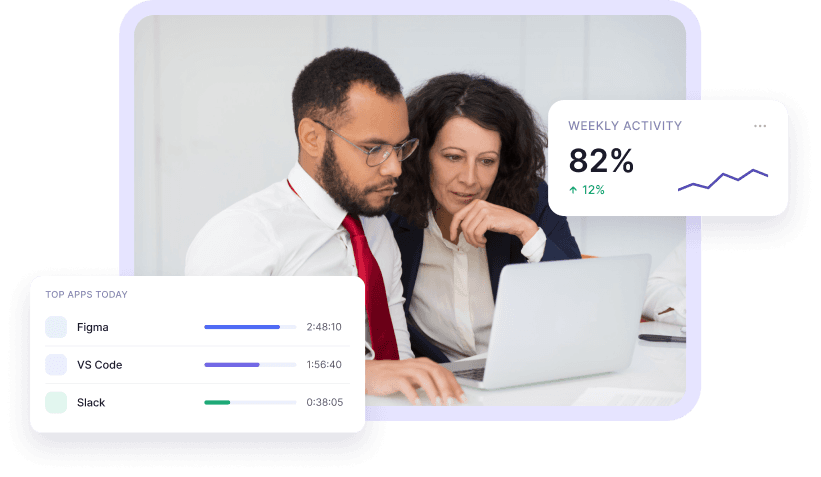
Know More, Work Smarter
With the information Clarity provides, both individuals and managers can make better decisions and spend more time on the work that actually matters.
Your dashboard gives a clear overview of the day and the week — no need to reconstruct where the time went from memory or a dozen separate tools.
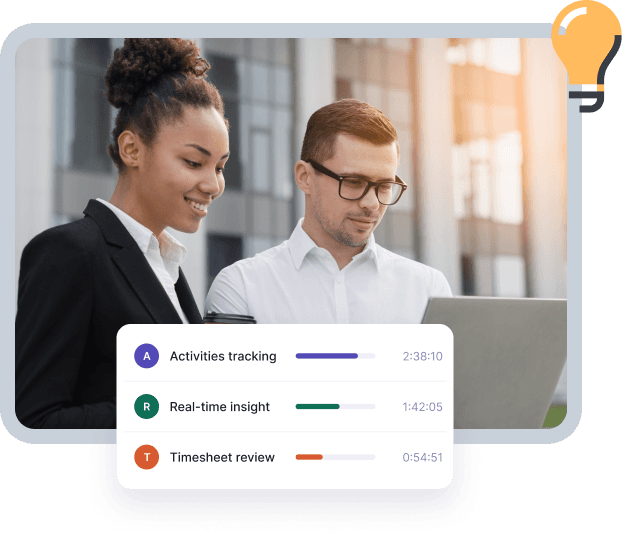
Automated Timesheets
Tracked time is categorized and totaled automatically as you work — nobody has to sit down on Friday afternoon and reconstruct where the week went.
When it's time to submit, most of the timesheet is already filled in. You just review it and send it for approval.

Billing You Can Rely On
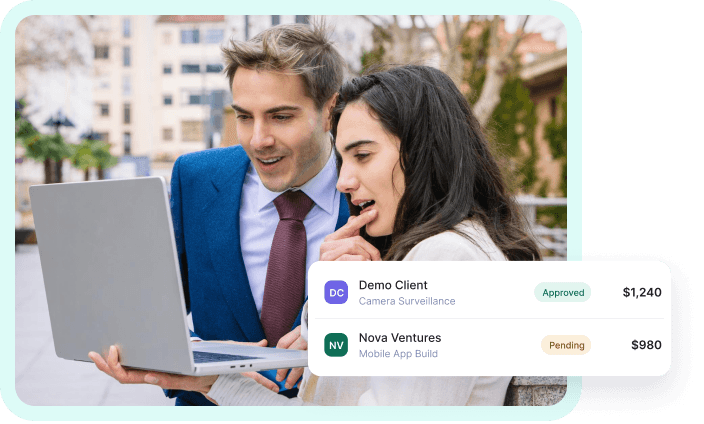
Some organizations bill clients directly from tracked hours and require approval before invoices go out. Clarity turns a submitted, approved timesheet straight into billable totals.
Using tracked hours to bill helps avoid disputes or questions about who worked on what, and for how long.
04
Built for Productivity, Designed with Privacy in Mind
Clarity is designed to help organizations understand work activity while respecting employee privacy. It focuses on work-related insights during tracked hours and does not collect unnecessary personal information.
- Keystroke logging
- Email or message content monitoring
- Camera or webcam access
Clarity does not include:



The first thing people asked was "can I see my own data too?" The answer being yes changed how the rollout went.
HR Manager
85-person company
FAQs
Start Tracking Time With Clarity - Tool You Can Actually Trust
Full transparency for everyone involved — from the first install to the last exported report.